Recurring task
Written By OFFLIGHT - Jean
Last updated Over 1 year ago
You can create flexible recurring tasks that support dynamic planning.
How to Create a Recurring Task
In the Task Creation popover, select the “Recurring Task” tab to open the recurring task setup.
Enter the required fields for the recurring task and then click the “Create” button.
Recurring Task Fields
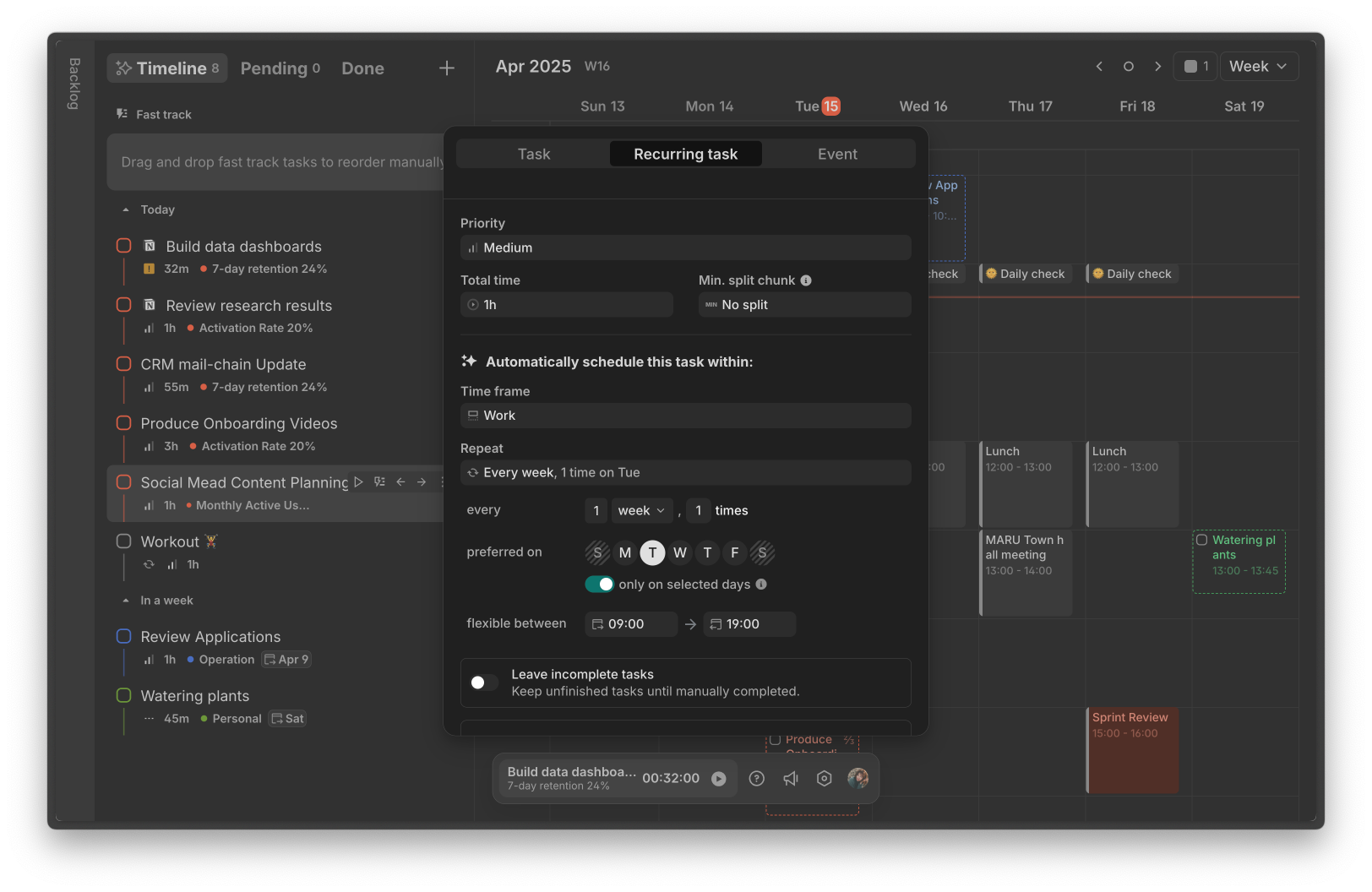
Basic Fields
Priority: The priority of the recurring task. It uses the same priority system as regular tasks.
For example, if you have a Medium-priority recurring task from 2 PM to 3 PM, and a High-priority task is created for the same time, the recurring task will be moved to a later slot or skipped.
Total time: The total amount of time needed to complete the recurring task.
Min. split chunk: If you can break the recurring task into smaller sessions, this is the minimum length of each session.
List: The list that the recurring task belongs to.
Recurring Settings
Time frame: The time range during which the recurring task should be created.
Repeat (Supported Intervals)
Daily: Repeats every N days (e.g., every day, every 2 days, every 3 days, etc.)
Weekly: Repeats N times every N weeks (e.g., 3 times a week, 2 times every 2 weeks)
preferred on: The days of the week you prefer to do the task.
If “only on selected days” is turned on, the task will only be scheduled on those preferred days.
If it is turned off, the task can be planned on other days as long as it follows the repeat cycle.
Examples
Every week on Monday/Wednesday/Friday with “only on selected days” on
→ The task is scheduled only on Monday, Wednesday, and Friday.Every week on Monday/Wednesday/Friday with “only on selected days” off
→ If you miss Monday, the task can be planned on Tuesday, Wednesday, or Friday.
Monthly: Repeats every N months, with two options:
A specific date (e.g., the 25th of each month)
A specific weekday in a certain week (e.g., the fourth Friday of each month)
Flexible between
This is the time range in which you hope to schedule the recurring task. By default, it follows the Time frame setting.
If you go past this time range, the recurring task is automatically skipped.
Leave incomplete tasks
If the task must be done even if it is not finished on the scheduled day, you can set this so it stays in the task list without being skipped.
For example, if you must pay a monthly salary or water your plants and cannot finish on the scheduled day, you still need to do it the next day. In this case, turn on “Leave incomplete tasks.”